Operator Interface
Operator interface is only for the operator personnel in charge for the laundry machine.
StartPage
This is the start page where we begin :
To enter the operator page use the logo button on the top left. It will ask the operator's pin number to authorize the access.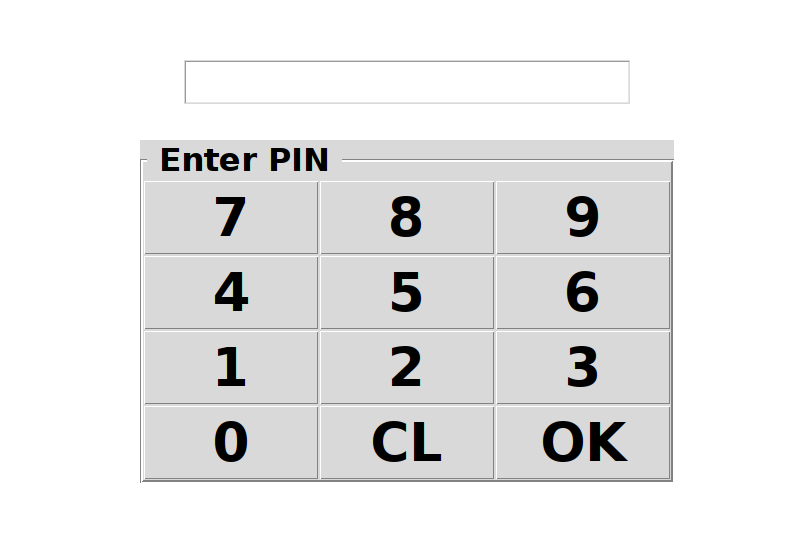
Enter the operator's pin number supplied by the technician, followed by pressing OK button. CL or clear button is to erase the previous entry and enter 0 (zero) then OK to go back to start screen.
If the pin is correct then it will show this operator screen :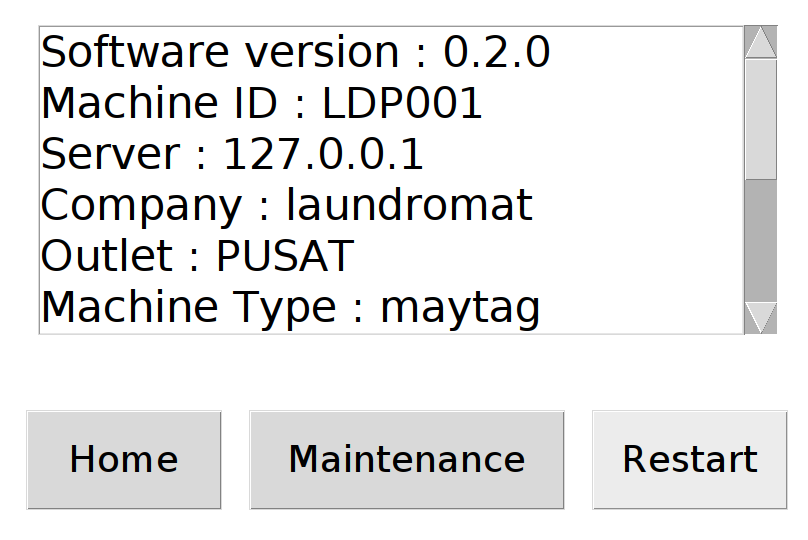
The info box will show the various system status and variable such as :
- Software version
- Registered Machine ID
- Server IP / Hostname
- Company ID
- Outlet ID
- Machine Type
- AP where the system is connected to
- System local IP
- System hostname
- System CPU temperature (in celcius)
- System Memory usage (in percentage)
- System Disk usage (in percentage)
On the bottom there are 3 buttons which will do this task :
Home :
Go back to Start Page
Maintenance :
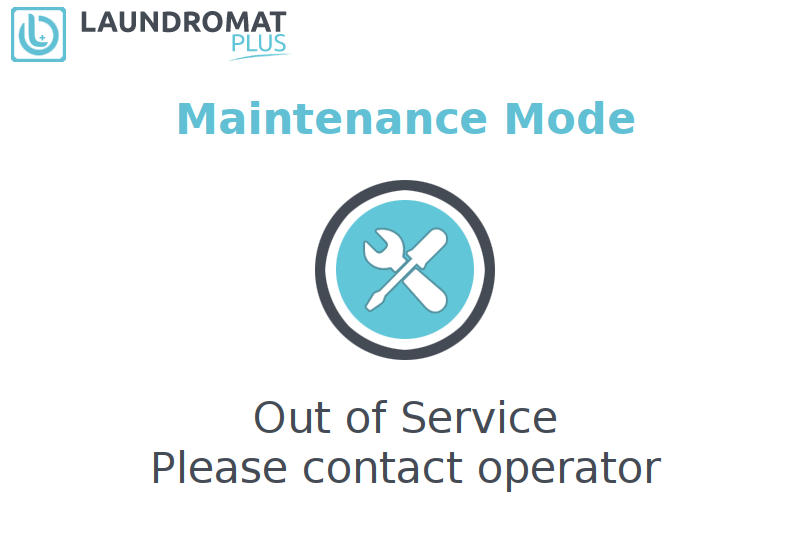
Maintenance mode is use to trigger notification to the head office of this myLaundry system, telling that there are troubles on this machine and it needs a service technician to fix the problem.
This mode will also put the system into maintenance mode and no longer in operation for customers. All transactions for this machine will put on hold on the server and the machine id for this machine is suspended.
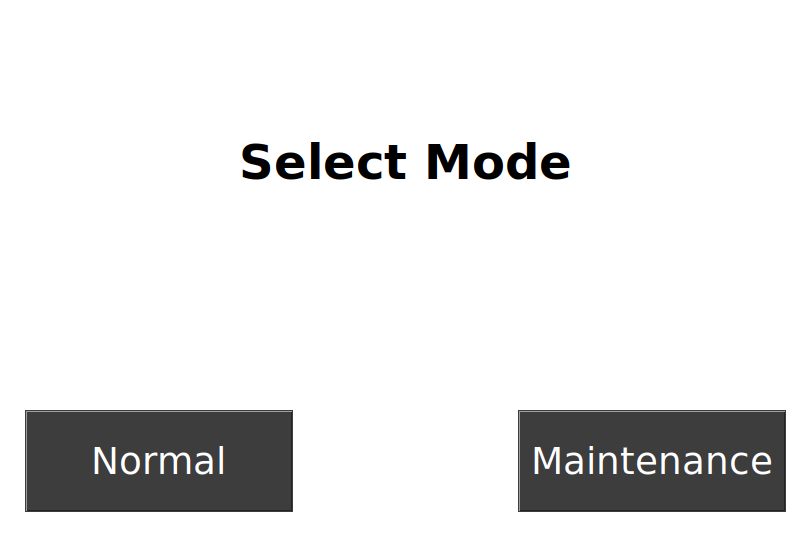
 After the visit, technician will try to fix any issue on this machine, and if everything okay, the technician will set again back to normal operation by pressing Normal button.
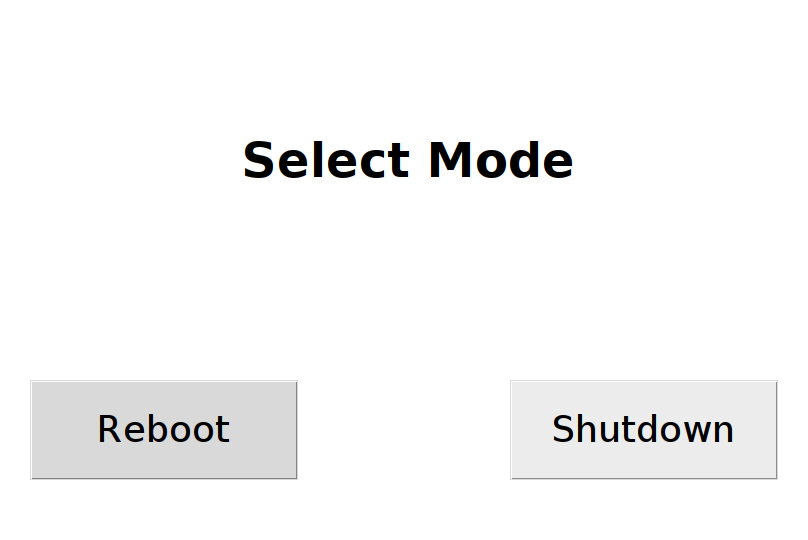
Restart :
This will restart the system. However, the system will ask again either to reboot or shutdown.