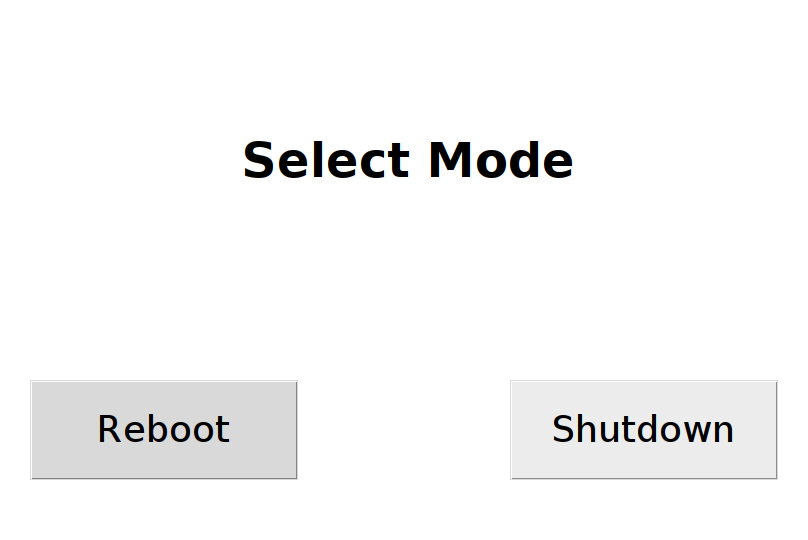
Technician Interface
Technician interface is only for the technician personnel in charge for the laundry machine.
StartPage
This is the start page where we begin :
To enter the technician page use the logo button on the top left. It will ask the technician's pin number to authorize the access.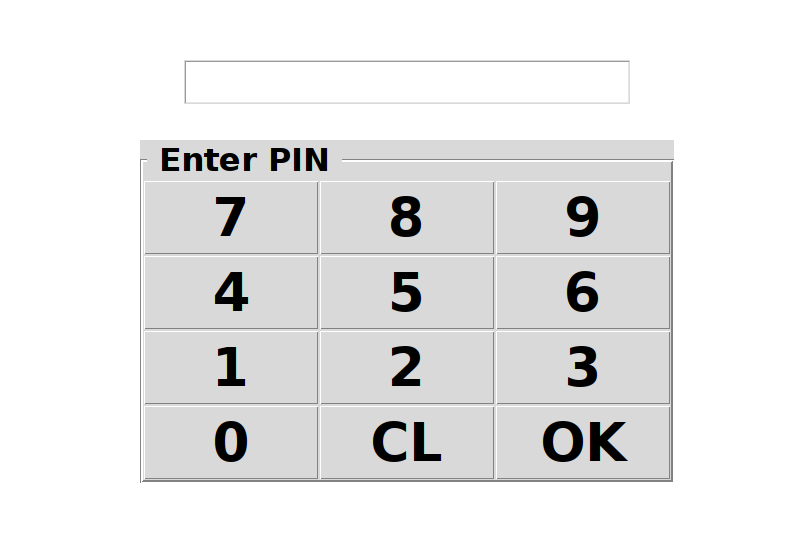
There are two types of pin on this system, the operator pin and technician pin (or engineering mode pin). To enter technician mode page use the engineeringmode pin, followed by OK button. CL or clear button is to erase the previous entry and enter 0 (zero) then OK to go back to start screen.
If the pin is correct then it will show this technician mode screen :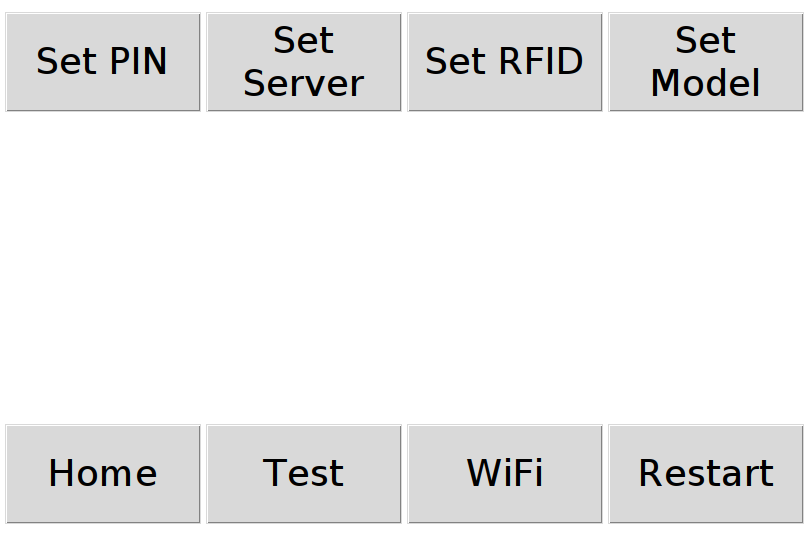
This technician mode screen also called Settings Page, contains several important setting for the whole system such as :
- Set PIN
To set the operator pin number - Set Server
To set server parameters - Set RFID
To set RFID parameters - Set Machine_type
To set the machine id or pulse type - Home
To get back to start page - Test
To test the machine trigger pulse type - Wifi
To set the network connection to wifi AP - Restart
Restart or Shutdown the machine
The detail for each settings function :
Set PIN
Choosing this function will show an entry to enter a new pin number for operator.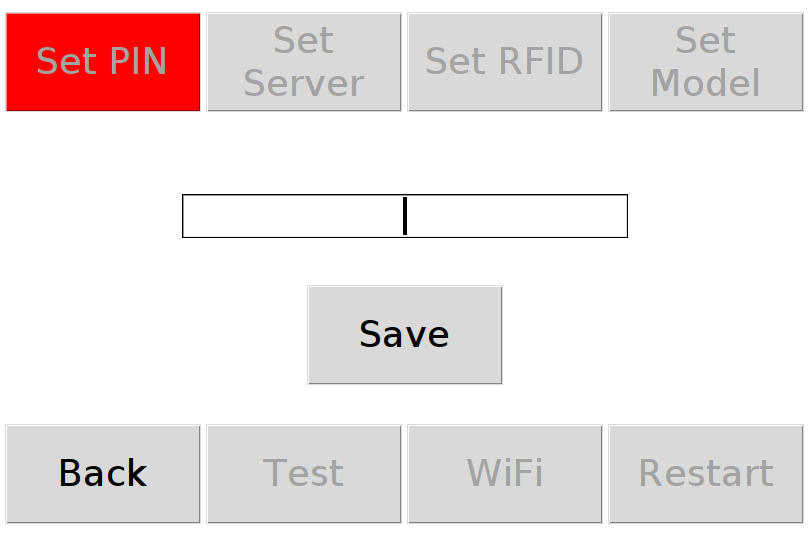 If there are no physical keyboard attached on the system, then touch the entry field to show up an onscreen keyboard which then you can enter the pin number easily.
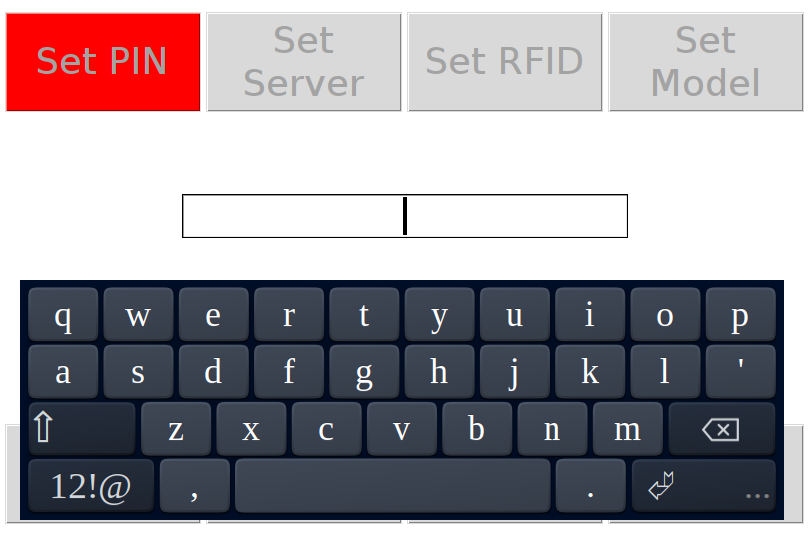 Make sure all pin entry are all digits number and without spaces. You have to close the onscreen keyboard after it so you can press SAVE button, and here is how :
Long press on the 3 dots button at the bottom right corner of the keyboard, and it will show the Close X button.
Don't forget to press Save button to permanently save the Operator's pin number secret. The system will ask to reboot after Save, do it.
Set Server
Choosing this function will show a new page to set some various server parameters.
Make sure and always double check the entry for this critical settings parameters or this client machine will never work.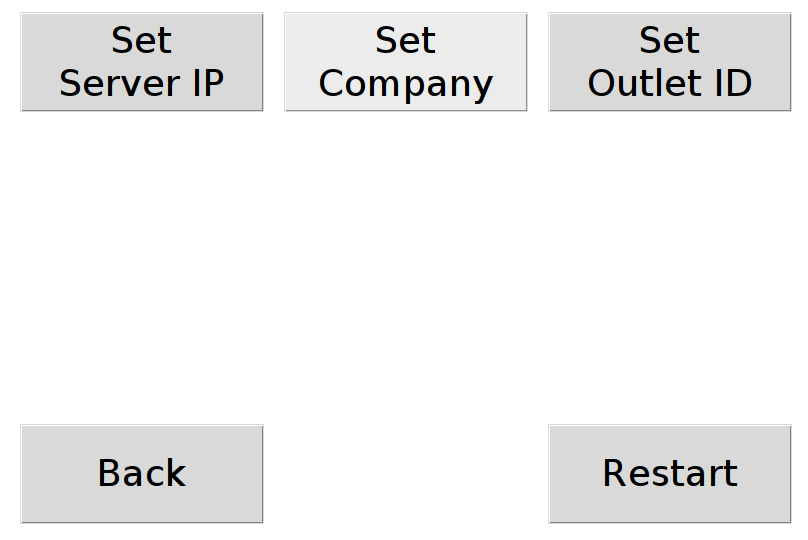
Set Server IP
This button will let the technician to enter the Server IP for this client machine to work.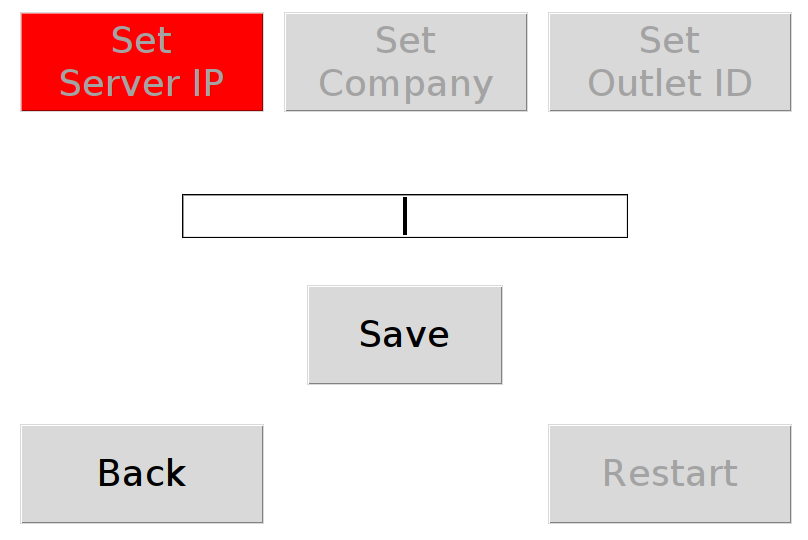
Set Company
This button will let the technician to enter the Company ID for database network.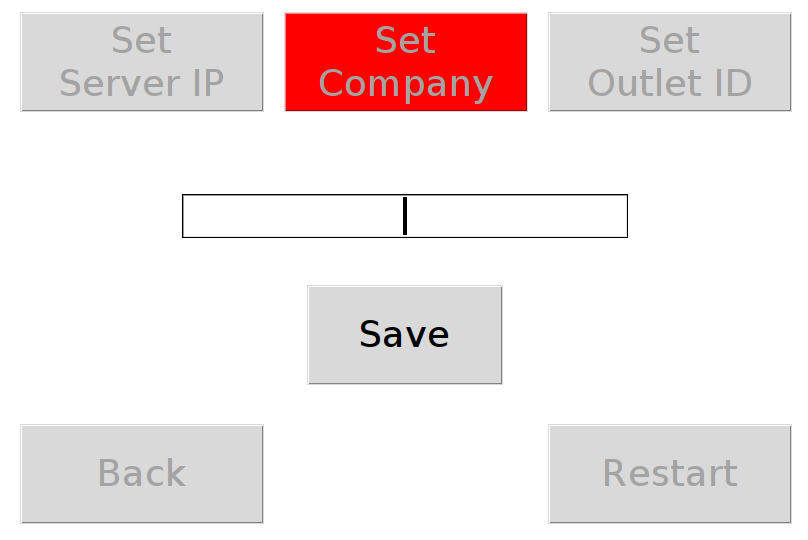
Set Outlet ID
This button will let the technician to enter the Outlet ID for multioutlet feature.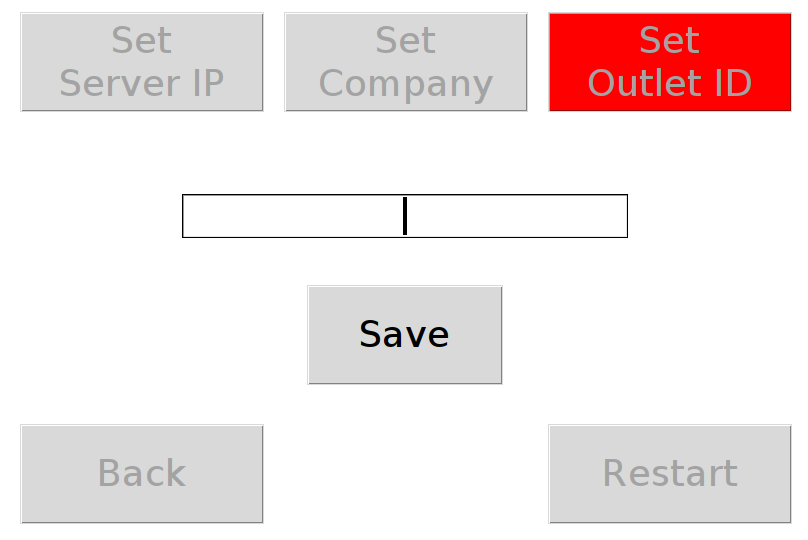
Don't forget to press Save button to permanently save all that new entry parameters.
On first set up, this client machine needs to be register into it's server database to get the machine ID or in other words it will authorizing this machine as parts of the network. So, the Register button will do that after all the entry completed.
After registering the client machine there will only one way out to finalize the changes, Reboot the system. So, Press the Restart button and choose Reboot.
Set RFID
This function will perform RFID card read test. Once chosen it will show this sub menu :
 Choose Read TAG will enter scanning screen :
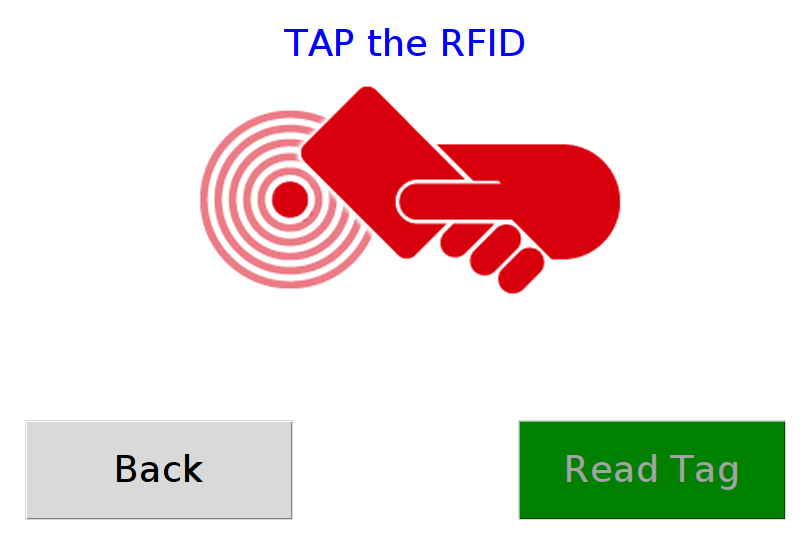 and once there is a card taped to the RFID sensor, it will show the tag number read :
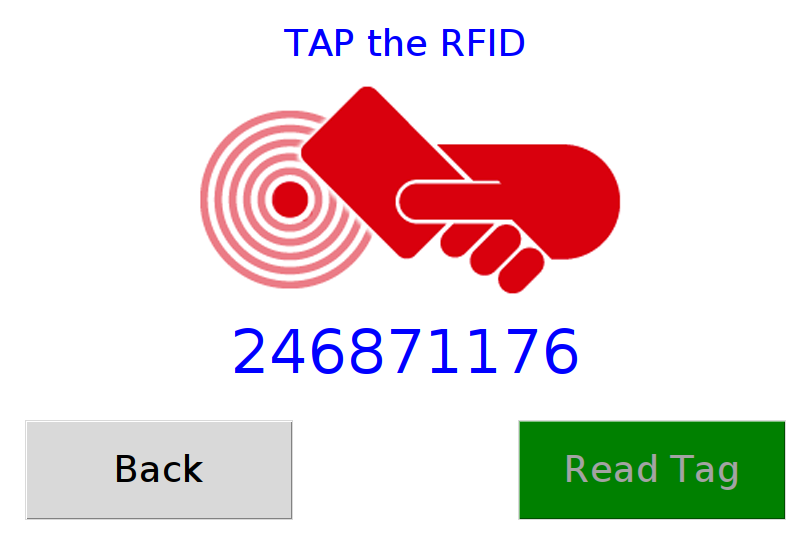 To prevent abuse and safety to the system, the screen will go back to the sub menu if there are no card read within 20secs.
Set Machine_type
Choosing this function will show some various machine type button. Choose correctly by pressing the corresponding button. This will set the pulse output type specifically for that machine. Consult the technical manual from the manufacturer for details about this pulse type.
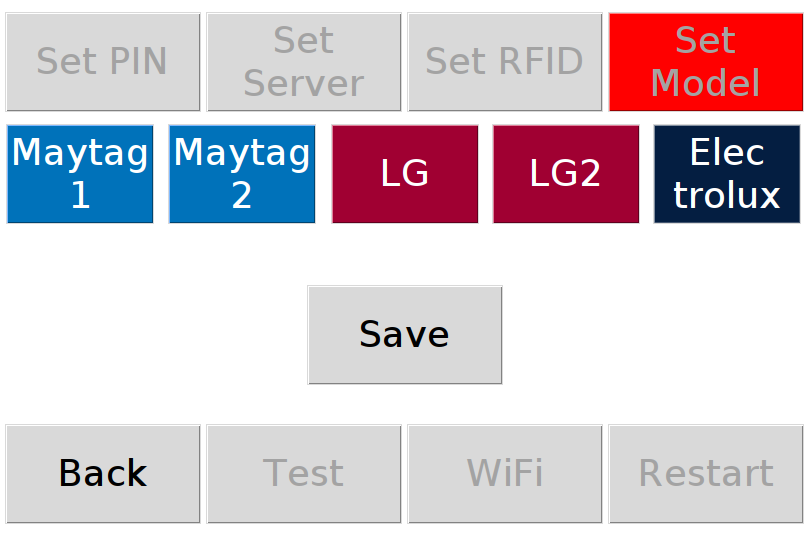
Don't forget to press Save button after it so the changes is saved. The system will ask to reboot after Save, do it.
Home
Go back to Start Page
Test
This is a Test Mode for the machine pulse type. Press the corresponding button to test the output pulse.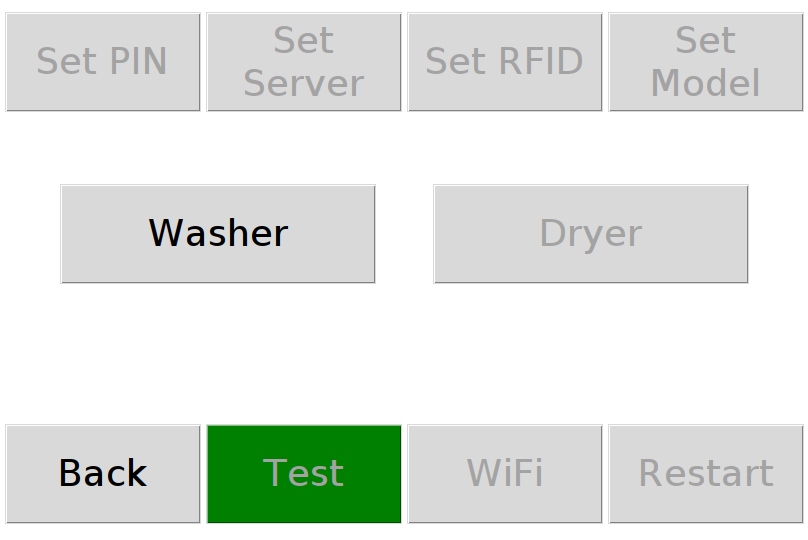 When setting the machine type to Maytag type, the Dryer button will disabled, because Maytag type machine only have 1 trigger pulse output. The Washer and Dryer button test will enabled if the machine type is LG.
Wifi
This function is needed to connecting the system to the internet and make the whole system works.
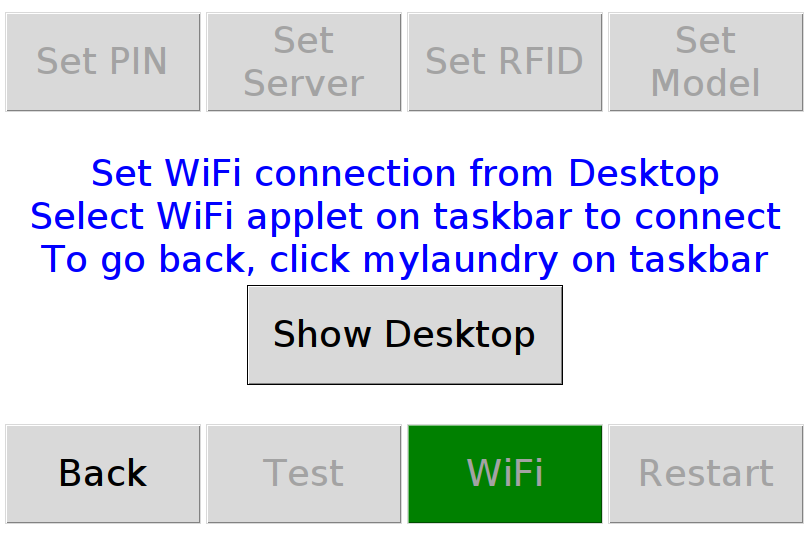 Press the Show Desktop button, the myLaundry application will minimized and show the Desktop screen.
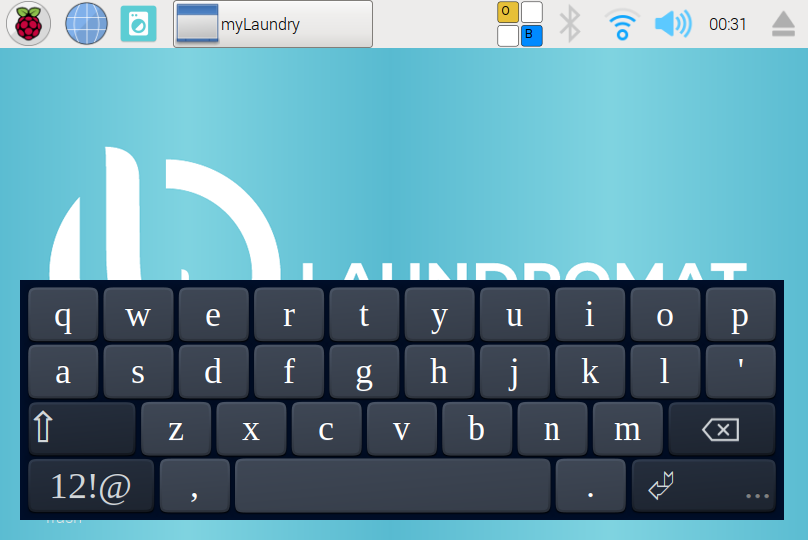 At the same time an onscreen keyboard will also pop up for the technician entering wifi password.
Press on the wifi icon button on the top taskbar, and select the appropriate Access Point you want to connect to.
At the same time an onscreen keyboard will also pop up for the technician entering wifi password.
Press on the wifi icon button on the top taskbar, and select the appropriate Access Point you want to connect to.
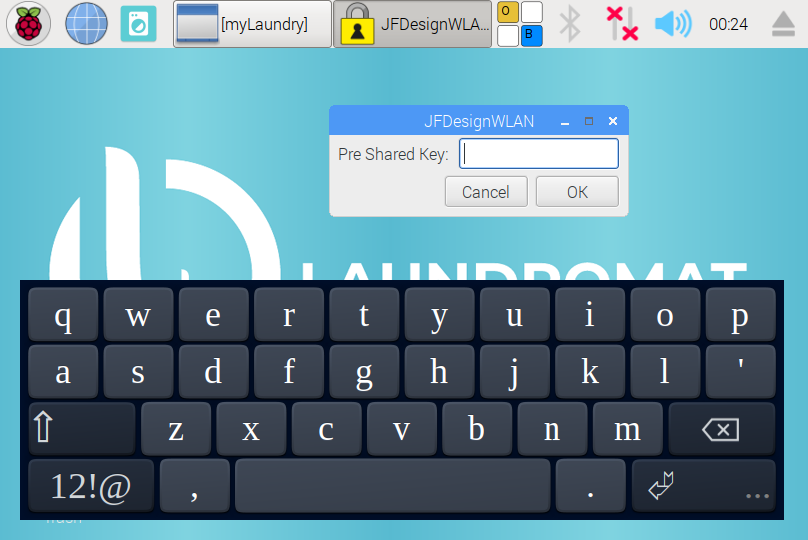 Enter the AP password and wait until the wifi icon show connected.
Close the onscreen keyboard and select myLaundry application minimized button on the taskbar to go back to Settings Page.
Enter the AP password and wait until the wifi icon show connected.
Close the onscreen keyboard and select myLaundry application minimized button on the taskbar to go back to Settings Page.
Restart
This will restart the system. However, the system will ask again either to reboot or shutdown.